Rent a Rust Server in Vietnam | Experience the Ultimate Rust Gaming Experience
1. Advantages of Renting a Rust Server at VinaHost
Choosing to rent a Rust server at VinaHost offers many outstanding benefits, especially suitable for individuals, groups of gamers, or communities wanting to build a stable private server:
- High Performance & Stability: Utilizing Gold CPUs and NVMe hard drives, 99.9% uptime, smooth performance even with a large number of players.
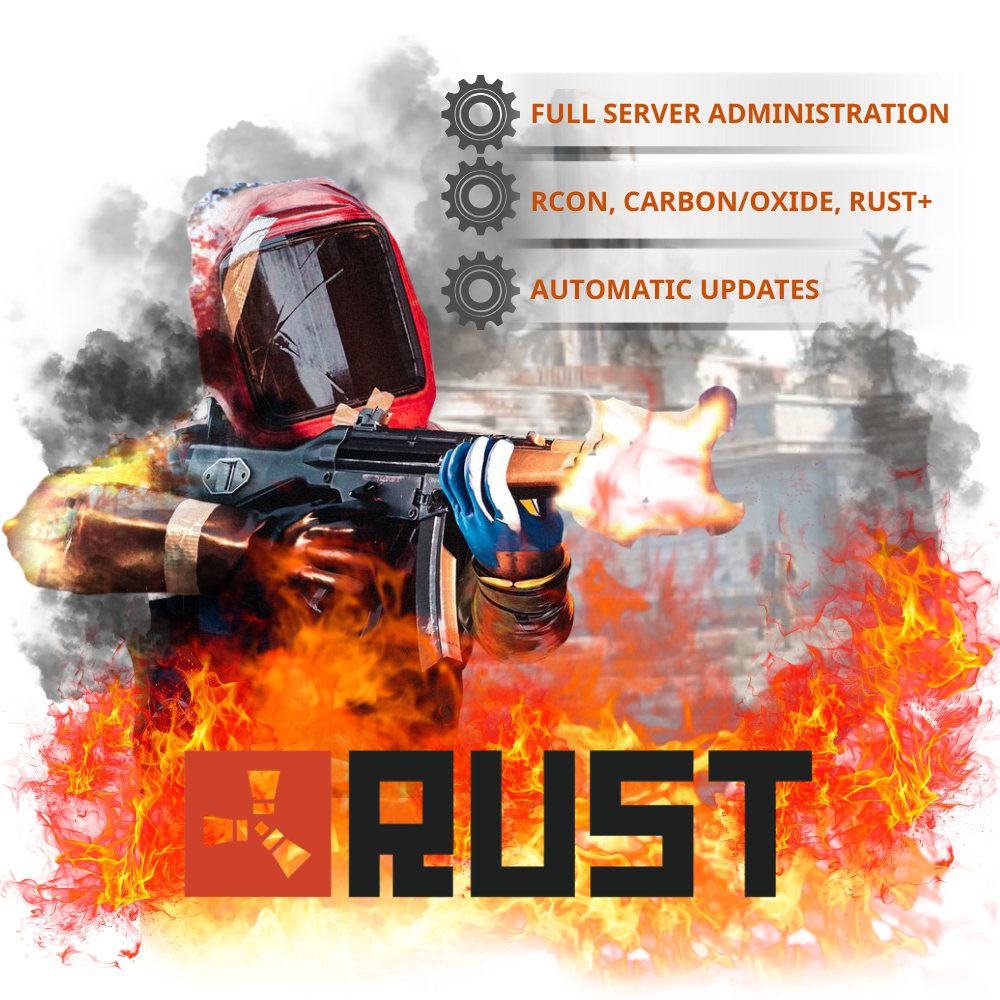
- Full Administration: Supports Admin Commands, RCON, Carbon/Oxide plugins, Auto-Wipe, Custom Maps, and Rust+.

- Automatic Operation & Updates: Schedule Start/Stop/Restart, automatic version updates, continuous and uninterrupted operation.
- 24/7 Technical Support: The VinaHost team is always ready to handle issues and provide setup support.
- Stable Connection: Maintains a smooth connection even with many players simultaneously.

- Easily customizable & expandable: Supports Staging Branch, App Rust+, and mods to personalize your server experience.

2. Instructions on how to register and connect a Rust VPS Server at VinaHost
2.1. How to register a Rust VPS Server
To register a VPS to run a Rust game server at VinaHost, follow these steps:
Step 1: Access the VinaHost website
Go to the homepage and select the appropriate VPS service (NVMe VPS is recommended to ensure performance).
Step 2: Choose your configuration
Depending on the expected number of players:
10–20 players: Minimum 4GB RAM
30–50 players: 8GB RAM or more
Large servers: 16GB RAM or higher
Step 3: Choose your operating system
Windows Server (suitable for those familiar with graphical interfaces)
Linux (Ubuntu/CentOS) if you have administration experience
Step 4: Complete payment
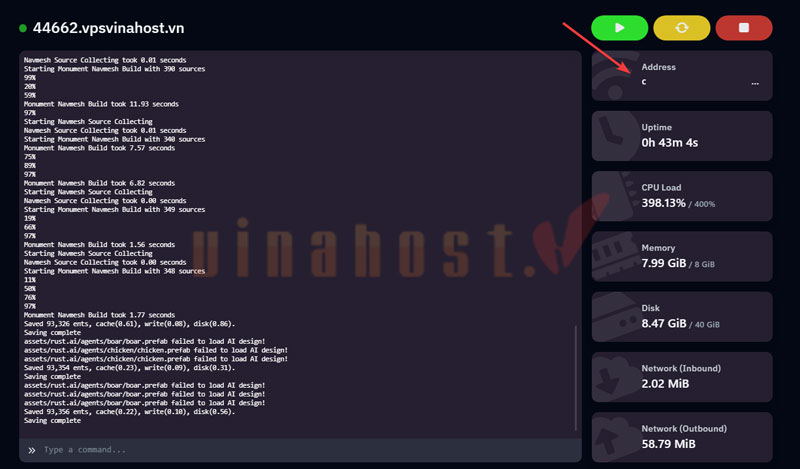
Fill in your information, select your payment cycle, and complete the order. After successful payment, the system will send your VPS information (IP, username, password) via email.
2.2. How to Connect to a Rust VPS Server
After receiving your VPS information, you can connect as follows:
If using Windows Server
Step 1: Open Remote Desktop Connection (RDP)
Press Windows + R → type mstsc → Enter
Step 2: Enter the VPS IP address
Enter the provided IP → select Connect
Step 3: Log in
Enter the provided Username and Password → access the server.
If using Linux VPS
You can use SSH:
ssh root@IP_VPS
Enter the password when prompted to log in to the server.
After successfully connecting, proceed as follows:
Install SteamCMD
Download and install the Rust server
Open ports (default 28015, 28016) on the Firewall
Configure the server.cfg file
If you need to expand or optimize the server, you can upgrade resources directly in the VinaHost service management page.